Install the software
R · RStudio · Quarto
Install in this order. R first, then RStudio, then Quarto (Tinytex is optional but recommended).
1. R
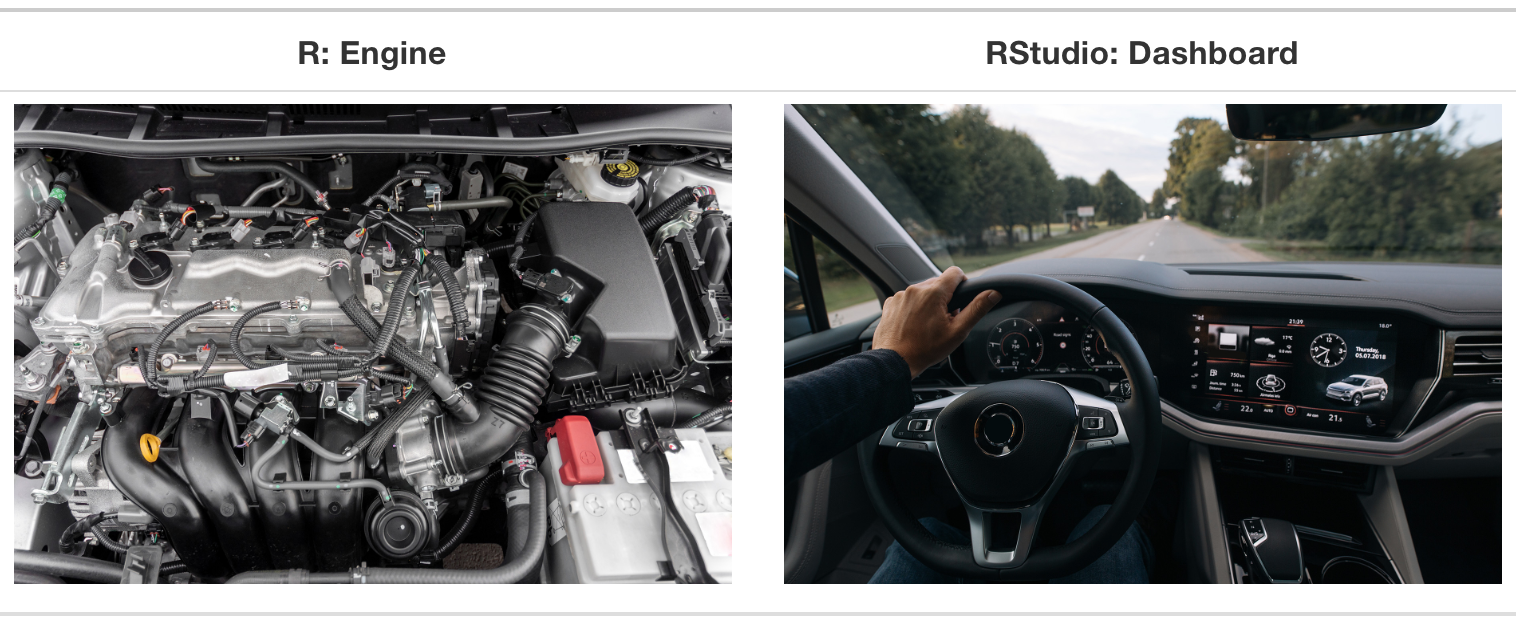
R is the language and the engine. It has almost no user interface of its own.
| Platform | Download | Notes |
|---|---|---|
| Windows | CRAN Windows | Also install Rtools, needed to compile some packages |
| macOS | CRAN macOS | Pick the arm64 build for Apple silicon (M1–M4), x86_64 for Intel |
| Linux | CRAN Linux | Use the CRAN repository, not your distribution’s default: distro versions lag badly |
Install the current release, 4.6.x. The interactive primers run R 4.6 in your browser, so a matching local version means the same code behaves the same way in both places.
The hard floor is 4.1: below that the native pipe |> does not exist, and we use it everywhere. Anything from 4.1 up will get you through the two days, so do not let an upgrade block you if you are short of time or admin rights.
2. RStudio
RStudio is the workbench: an editor, a console, a file browser, and a plot pane in one window.
Download RStudio Desktop (free) from posit.co/download/rstudio-desktop.
Posit’s newer editor, Positron, is excellent, but the workshop demos, keyboard shortcuts and screenshots all assume RStudio. Use RStudio for these two days and explore Positron afterwards.
3. Quarto
Quarto turns your code and prose into documents, slides and websites. RStudio bundles a copy, but install the standalone version so you get the current release and a working command line.
Download from quarto.org/docs/get-started.
4. A LaTeX engine (only if you want PDF output)
PDF rendering needs LaTeX. Do not install a full TeX Live distribution (several GB). Instead, from the R console:
install.packages("tinytex")
tinytex::install_tinytex()
This installs a ~200 MB LaTeX that Quarto knows how to use. HTML and Word output need none of this. Skip it if you are short on time or disk.
5. Confirm everything is talking to everything
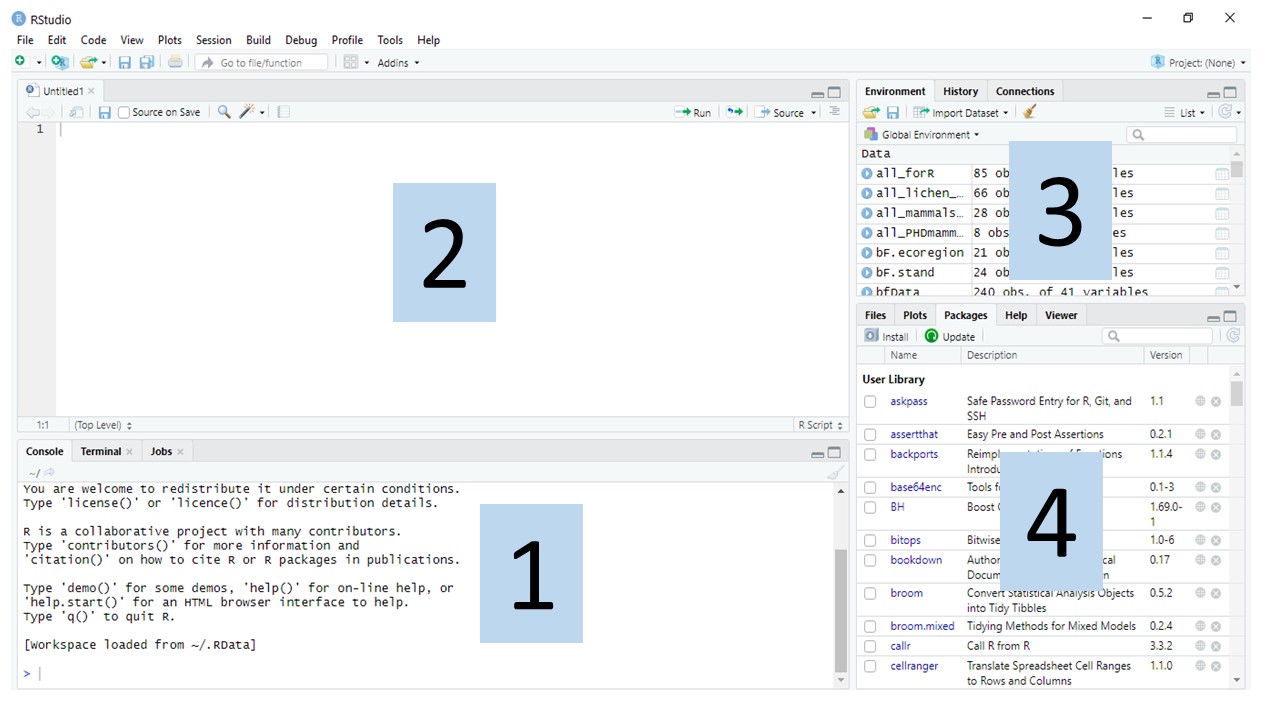
Open RStudio. You will probably see something like this. RStudio has 4 windows (also known as “panes”) that are inter-linked.
1. Console pane, where code is executed by R.
2. Source pane, to work with R scripts (code won’t be evaluated until you send it to the console).
3. Environment/History pane, to view objects in the working space and command history, respectively.
4. Files/Plots/Packages/Help pane, to see the file directories, plots, installed packages and access R help, respectively.
The first time you open
RStudioyou may not see the top left pane (the Source pane, labeled 2 in the figure below). To make it visible, use your mouse to selectFile -> New File -> R Script
Two of the three checks below ask R about a program outside R, and each needs a small helper package that a fresh RStudio does not ship with. Install both first. In the Console pane (bottom left), type this and press Enter:
install.packages(c("rstudioapi", "quarto"))Then type each line and press Enter:
R.version.string
#> "R version 4.6.1 (2026-06-24)"

rstudioapi::versionInfo()$version
#> '2026.08.0'

quarto::quarto_version()
#> '1.10.18'there is no package called 'rstudioapi' or 'quarto'
You skipped the install.packages() line above. Run it, then try again. The error is about the helper package, not about RStudio or Quarto themselves.
If quarto::quarto_version() still errors after installing the package, RStudio cannot see Quarto on your PATH. Restart your computer (genuinely, this fixes it most of the time). If it survives a restart, check whether Quarto is installed at all by asking the command line instead:
system("quarto --version")A version number means Quarto is installed and only R cannot find it: see Troubleshooting. No version number means Quarto is not installed: go back to step 3.
6. Set up an RStudio project
This is the habit that separates reproducible work from the alternative. A project is a folder plus an .Rproj file that tells RStudio “this folder is the root of the world”.
- File → New Project → New Directory → New Project
- Directory name:
meded-conclave-2026 - Put it somewhere you can find it, but not inside a folder synced to OneDrive/Google Drive if you can avoid it (sync conflicts corrupt R sessions).
- Tick Open in new session. Click Create Project.
Inside that folder, create three subfolders. From the R console:
dir.create("data")
dir.create("R")
dir.create("output")
Your project should now look like this:
meded-conclave-2026/
├── meded-conclave-2026.Rproj    <- double-click this to open the project
├── data/                        <- the workshop datasets go here
├── R/                           <- your scripts
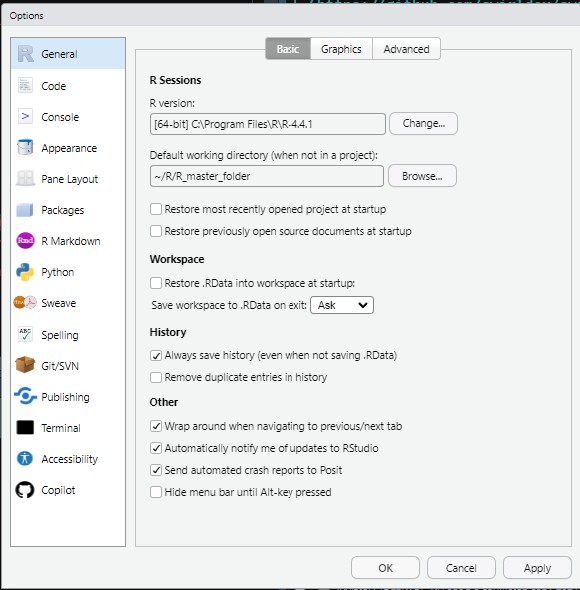
└── output/ <- figures and rendered documentsTools → Global Options → General
- Untick Restore most recently opened project at startup
- Untick Restore previously open source documents at startup
- Untick Restore .RData into workspace at startup
Tools → Global Options → Code
- Tick Use native pipe operator, |> (required R 4.1+)
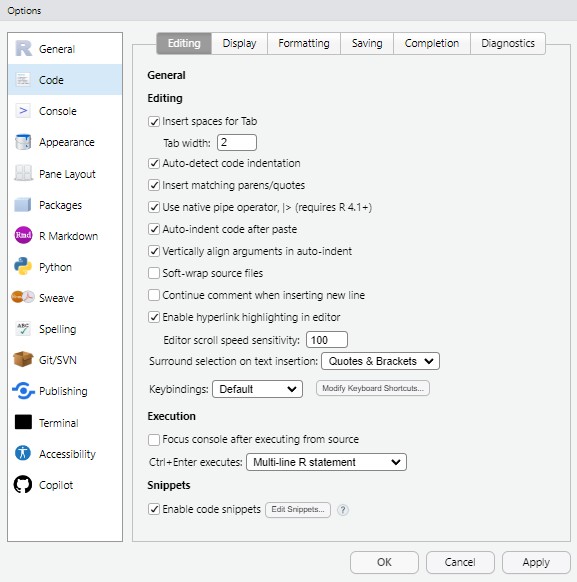
Why the first three: if R silently restores yesterday’s objects, your script “works” for reasons that have nothing to do with your script. Starting from a clean session every time is what makes your analysis reproducible.
7. Never use setwd()
Because you opened a project, R’s working directory is already the project folder. Refer to files with paths relative to it:
# Good: works on any machine
readr::read_csv("data/meded_students.csv")

# Better: using the `here` package
readr::read_csv(here::here("data", "meded_students.csv"))

# Bad: works only on your laptop, on Tuesdays
setwd("C:/Users/Priya/Desktop/stuff")
readr::read_csv("meded_students.csv")
If you send someone the project folder, the first two versions run. The third does not.
Next
→ Check your setup: install the packages and run the verification script.